Step 1
Go on App Store and search for – Purple Player
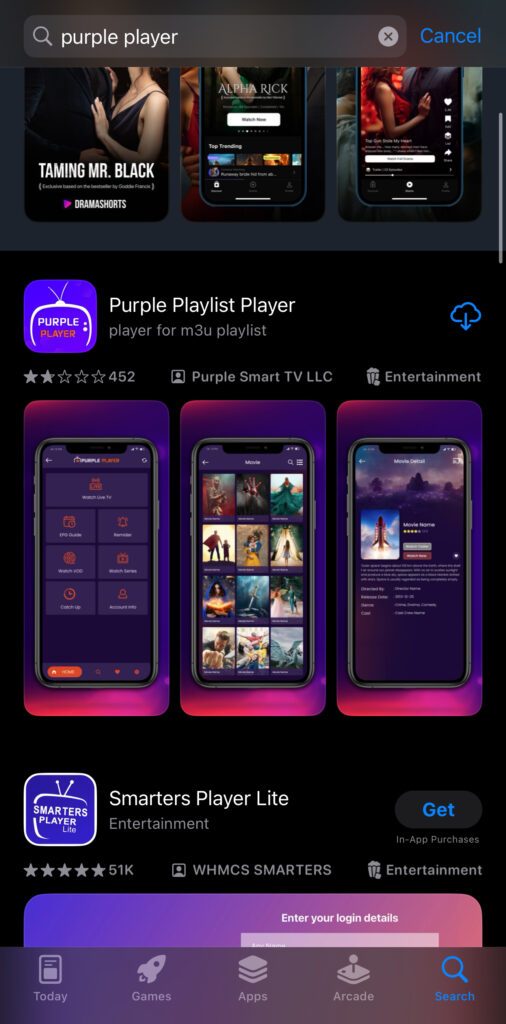
Step 2
Once the app has been installed. Open the app and Allow the notification.
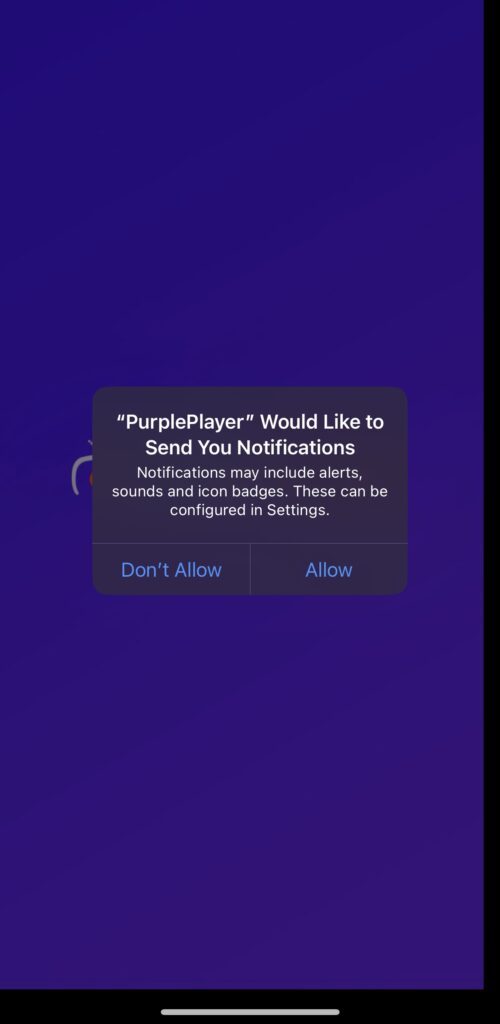
Step 3
Now click Consent
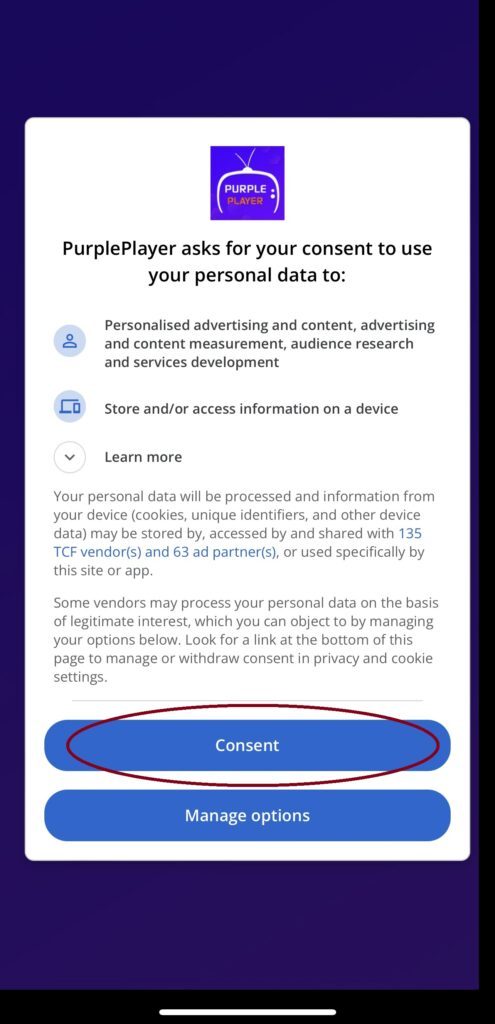
Step 4
Choose your language
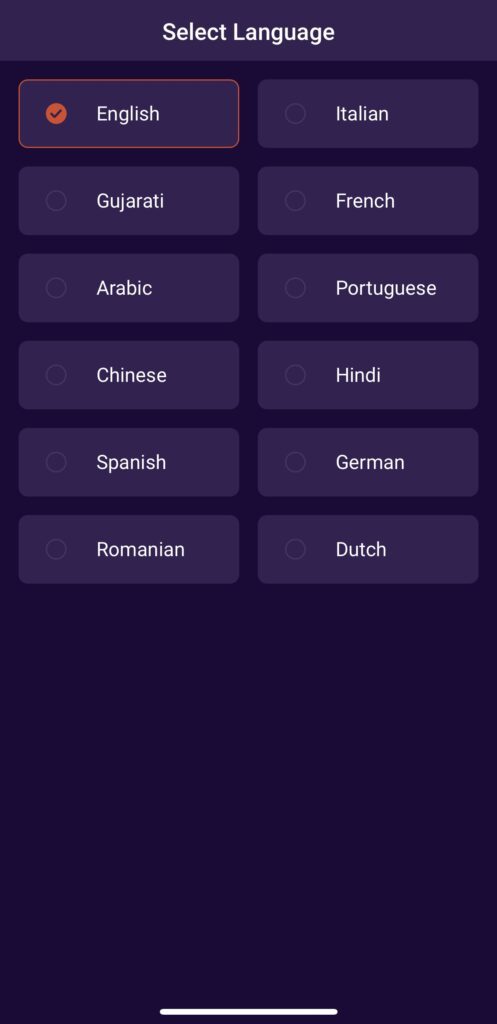
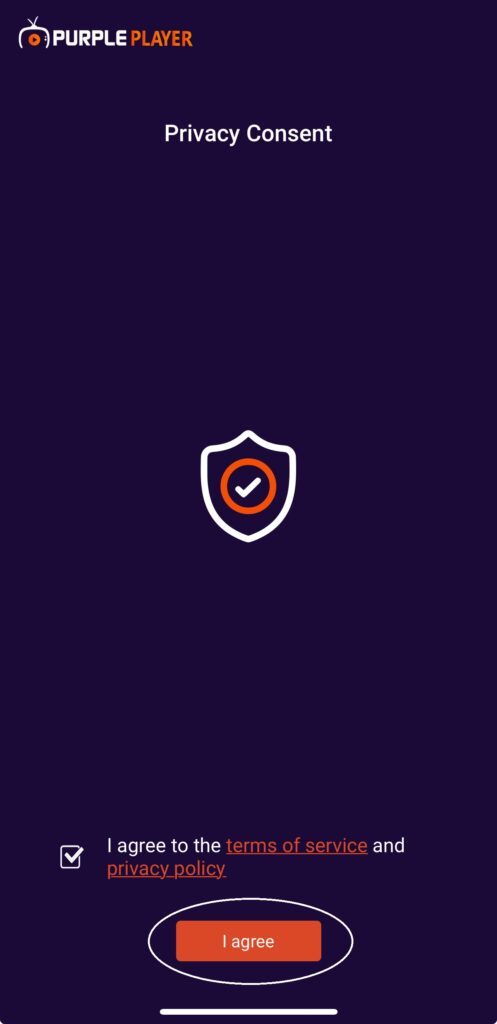
Step 5
Now press I Agree
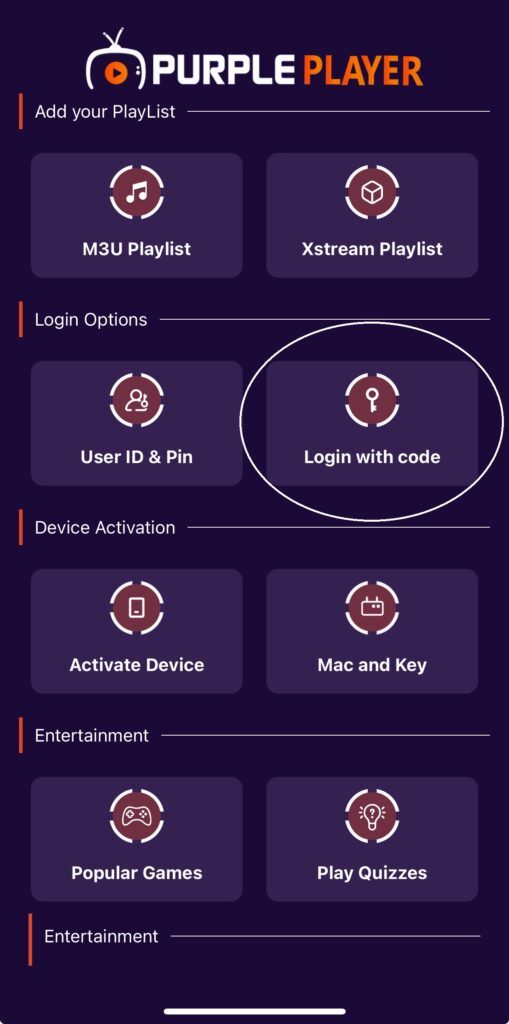
Step 6
Click Login with code
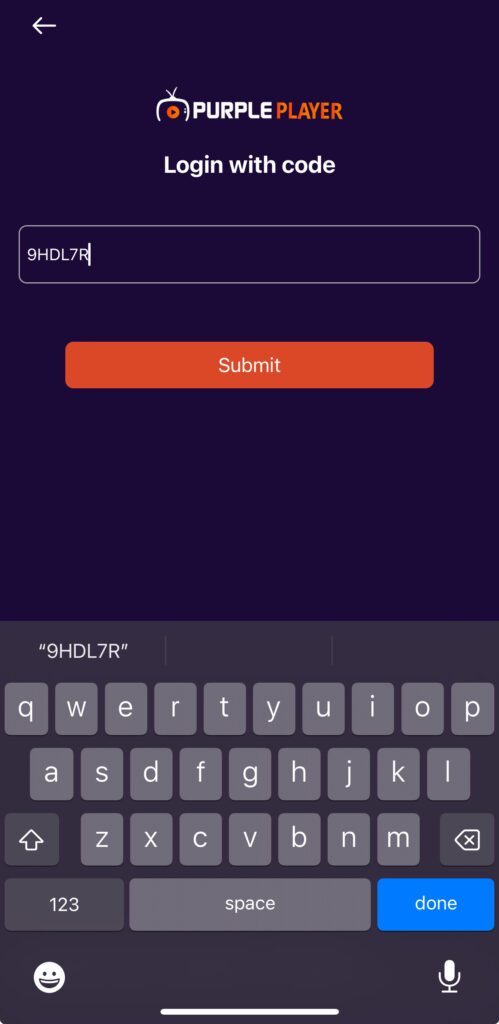
Step 7
Enter the following code into the box ( 9HDL7R ) and press Submit
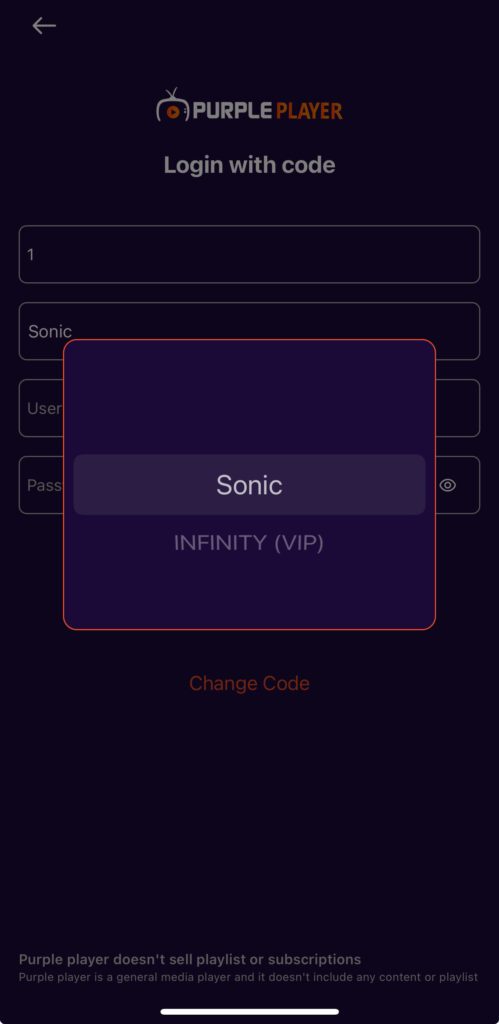
Step 8
Now, you choose the service you purchased and fill in the login details provided when you purchased our service.
Step 9
It should now log you in and refresh the app to bring the latest content.
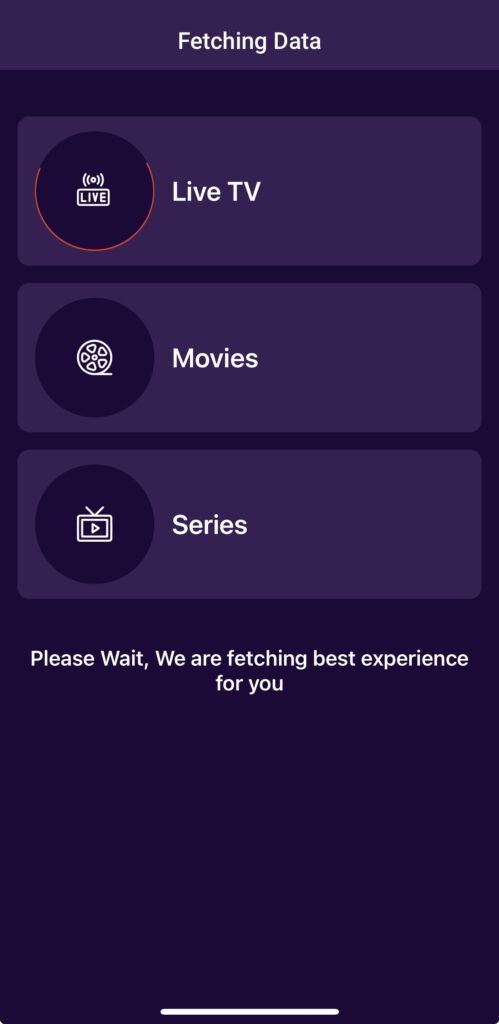
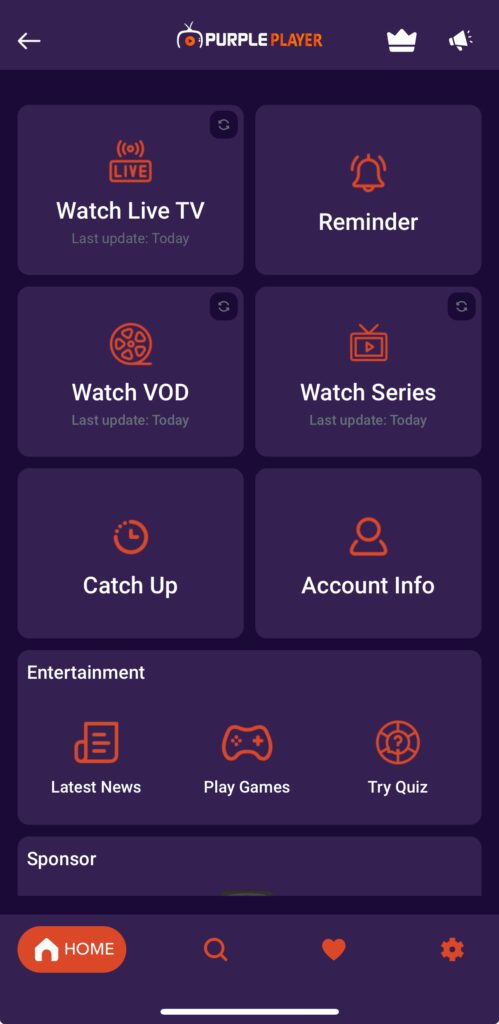
If you have any issues, Please don’t hesitate to contact us by putting a ticket on the Billing Portal .
Other Functions
How to refresh the content?
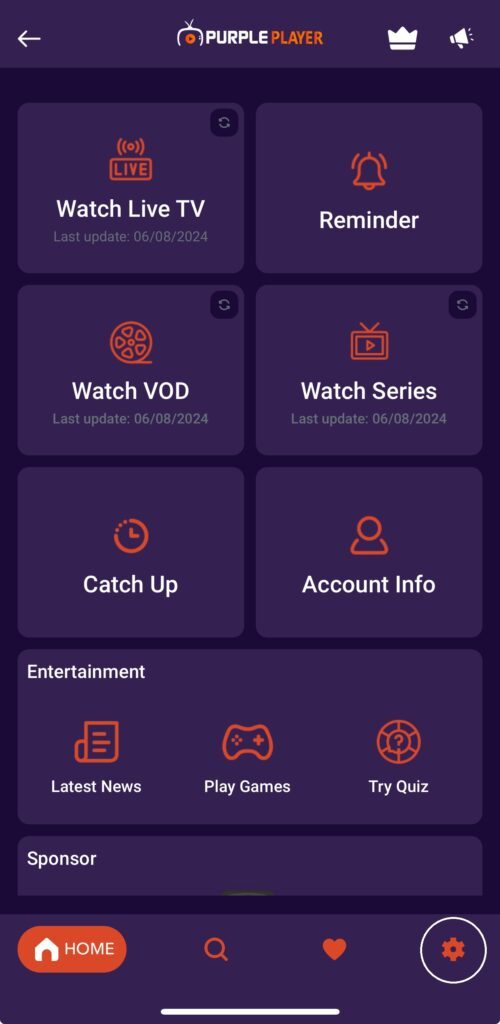
You simply click on Settings
Please do remember to do this when PPV event’s are coming on so that you have an up-to-date list.
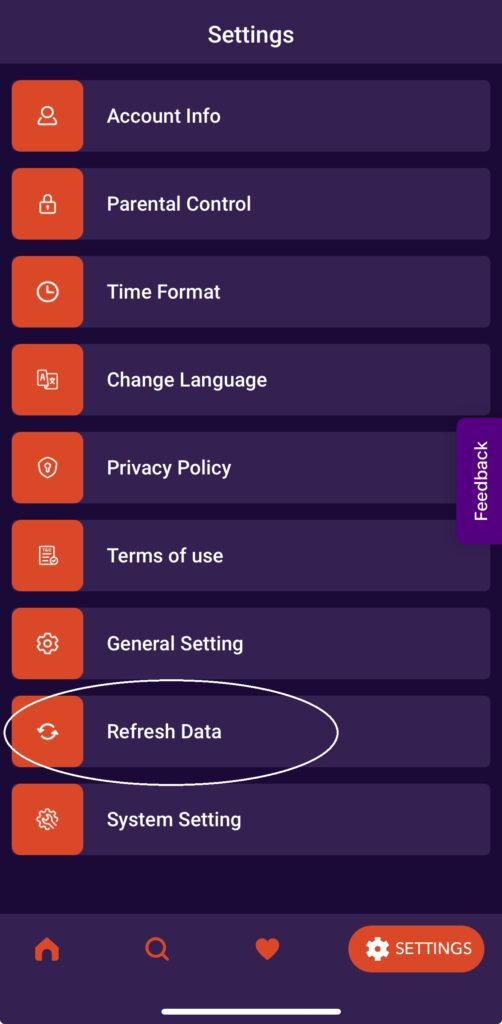
Now click Refresh Data
Now click Refresh All
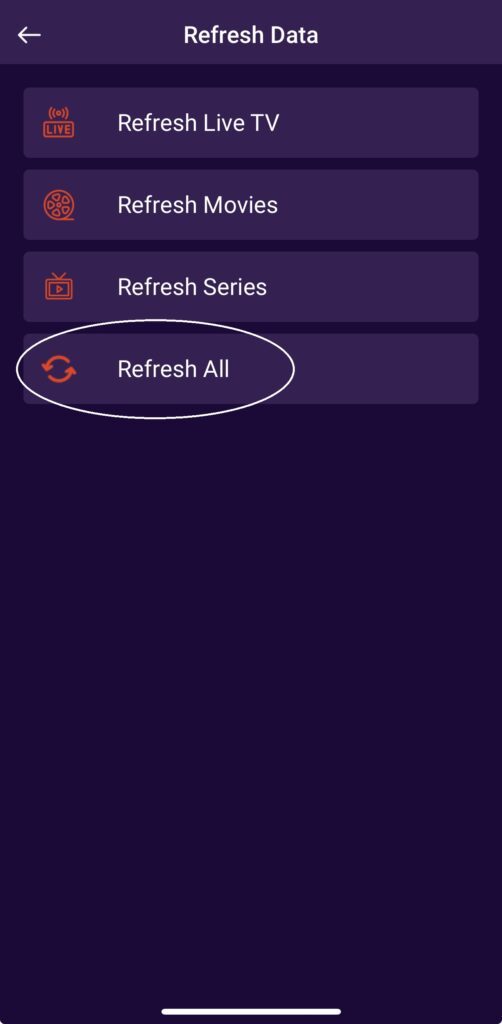
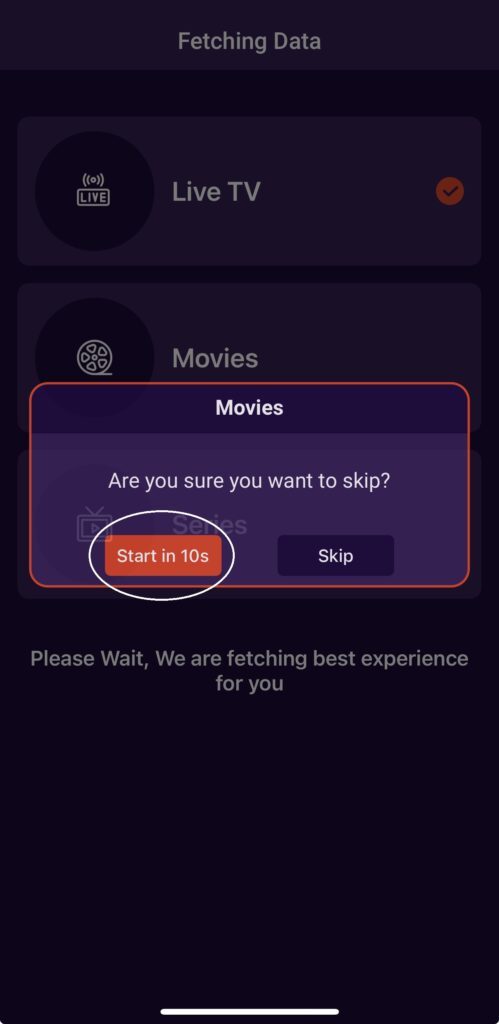
Click on the button circled every time it pops up.
How to add/switch between providers?
NOTE: You must have purchased two different subscriptions from us meaning from other providers we have on our Home Page .
Also, make sure you have already inserted your login details if you are trying to switch accounts.
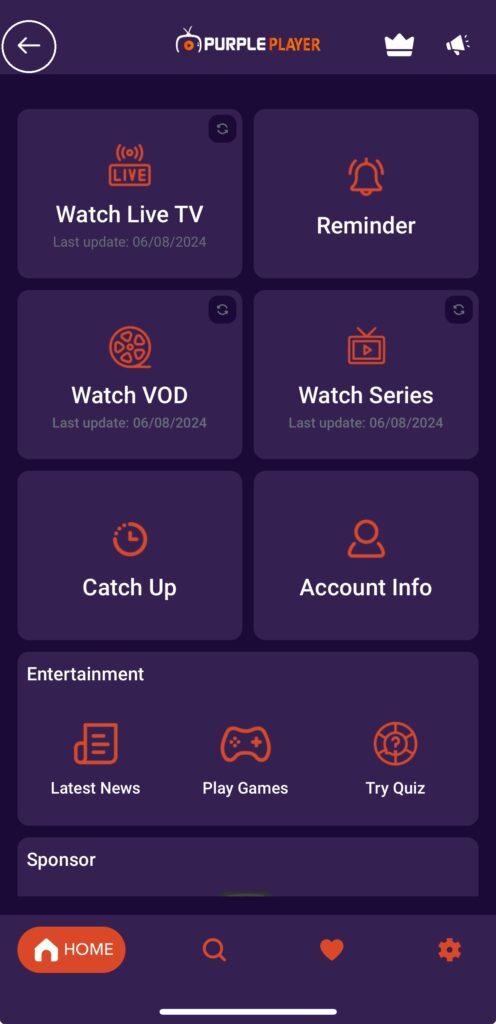
Click on the back arrow button circled in the image below.
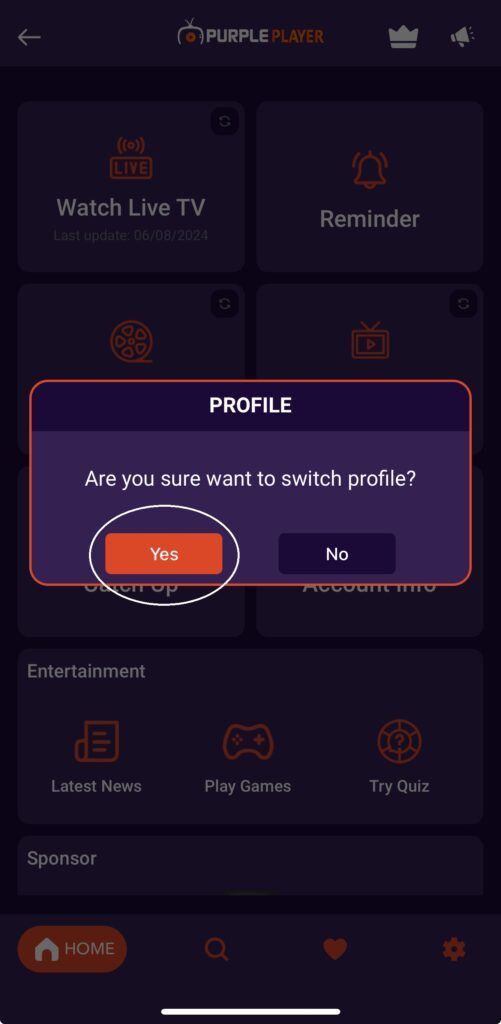
Click Yes
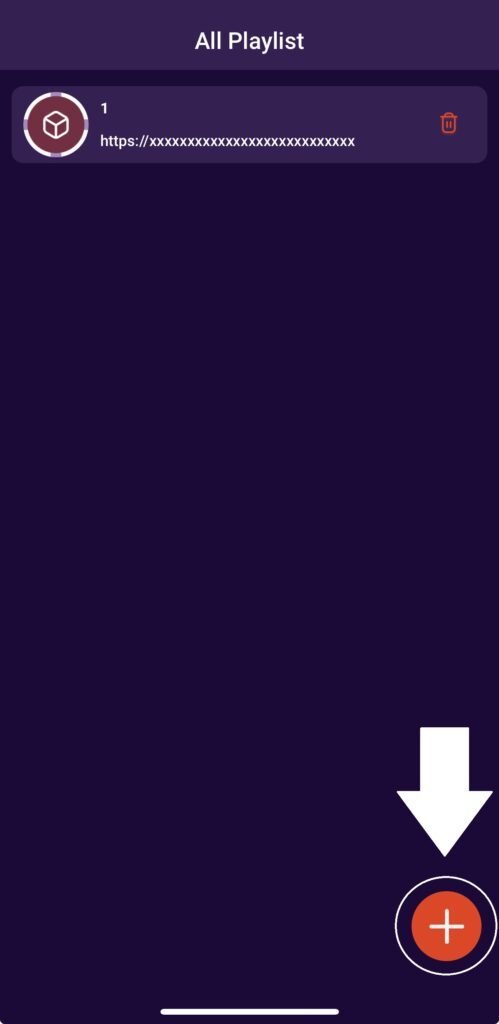
Click on the add button to add another subscription or to switch. You select whichever one you want from the list.

SkyStreamHubReborn, founded in 2019, is a UK IPTV provider offering live TV channels, including sports, movies, and international content. It’s known for affordable prices and high-quality streaming.